How to Try Loquora Voice Translation Without an Account
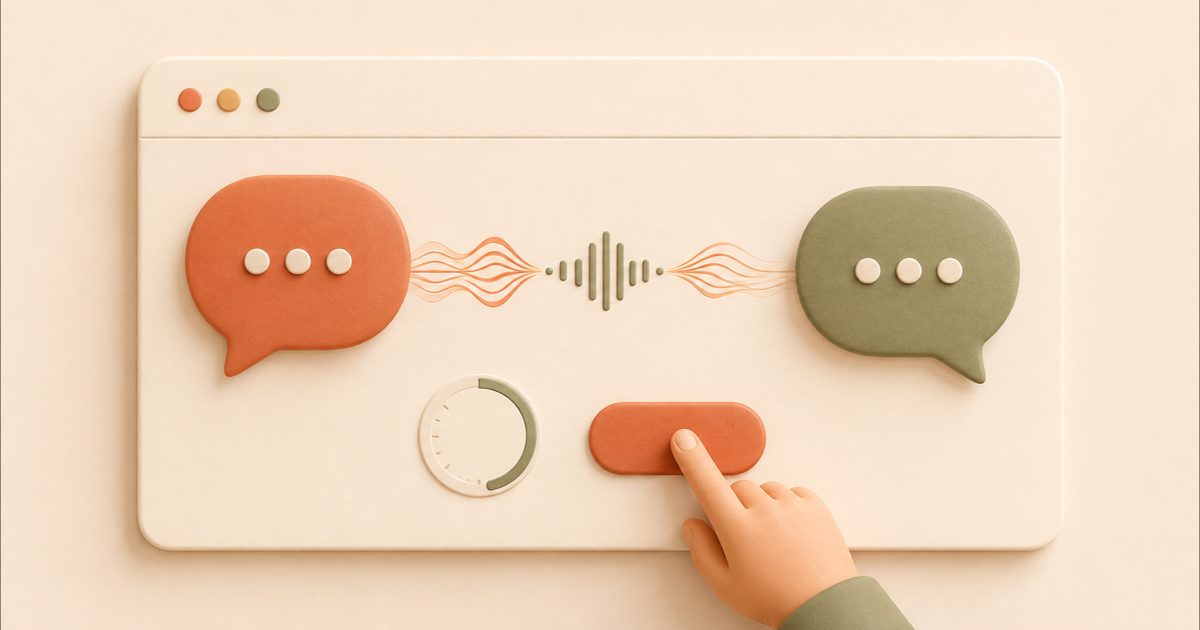
You no longer need to create an account and install the app just to find out whether live voice translation works for you. The Loquora home page now has a short demo: you speak into your microphone, see the recognized phrase, and hear it translated into the language you selected.
The test lasts up to 60 seconds. That is enough time to say a few ordinary sentences and see how well the system understands your speech.
What you need
The demo needs a current browser and the microphone in your computer or phone. You do not need to sign up, enter card details or install an extension.
When you start, the browser asks for permission to use the microphone. Loquora cannot hear your speech without it. A short automatic security check also runs before the session to protect the public demo from bulk automated requests.
How to start translating
- Open the Loquora home page and find the live translation panel next to the main product description.
- On the left, choose the language you will speak.
- On the right, choose the language in which you want to hear the translation.
- Select “Try live for 1 minute” and allow the browser to use your microphone.
- Wait until the panel says “Listening,” then say a sentence in your normal voice.
The recognized text appears first, followed by the translation. The browser then plays the translated sentence aloud.
What to say during the test
A complete sentence of several words works well for a first test. For example:
Good afternoon! I would like to discuss the time of our meeting next week.
This is closer to a real conversation than a single word or a random sound. Speak at your usual pace; there is no need to break the sentence into unnatural pieces. If the room is noisy, move closer to the microphone or use a headset.
You can try another sentence after the previous translation has finished playing. Within a minute, you should get a useful sense of how Loquora handles your pronunciation and how quickly it returns speech for the selected language pair.
Which languages are available
The demo lets you choose from 58 languages. The list can be searched in English or Russian, so you can find a familiar language name instead of working with two-letter codes.
For the first test, it is best to select the language you will speak. The full Loquora app also includes Auto Detect for ten common languages and regional recognition options. Our language selection guide explains when to use each setting.
How the demo differs from the full app
The demo covers the essential path: microphone input, recognition, translation and spoken output. It does not join a Zoom, Google Meet, Teams, Telegram, Discord, WeChat or other call, and it does not create a virtual microphone.
In the app and browser extension, translated speech is sent directly to the person you are calling. You can read their reply as translated subtitles or listen to it in your language. Supported paid plans can use a personal voice, while the public demo uses a standard voice.
The demo is available once and ends after no more than 60 seconds. Loquora does not save the audio recording or transcript from the test.
What to do after the demo
If the result works for you, download Loquora for Windows or macOS or install the extension for supported browser calls. The person you call does not need Loquora: they stay in their usual calling app and hear your translated speech as microphone input.
Before an important meeting, make a short test call. Check the selected languages, microphone, speakers and whether the Loquora microphone is selected in the calling app.